The Supernova agent is an AI assistant built into Supernova. Describe what you need in chat, and the agent reads, creates, and updates your design system for you — documentation, tokens, components, skills, files, and more.
What is the Supernova agent?
The agent works where you work. When you open it while viewing a documentation page, a token, or a component, that item is attached to the chat automatically, so you can say "this page" or "these tokens" instead of spelling out names.
The agent sees exactly what you can see in Supernova — nothing more. It shows its progress while it works and lists what it changed when it's done. Publishing and deleting always wait for your confirmation.
Who can use it
Supernova Agent is available to workspace members with Contributor, Editor, Admin, or Owner permissions. What the agent can do depends on your role.
|
Role |
What the agent can do |
|---|---|
|
Contributor, Editor, Admin, Owner |
Ask questions, search, and make changes to your design system within your role's permissions. |
Why use it?
- Answers from your own design system — ask where something is documented or which token to use, and get an answer based on your data.
- No setup — the agent is part of Supernova. No MCP connection or external AI tool is needed.
- Knows what you're looking at — the page or item you have open is attached to the chat as context.
- Many changes in one prompt — audit, rename, or update dozens of pages, tokens, or components at once.
- Visible results — changes appear in Supernova as the agent makes them, and each reply lists what was changed.
- Confirmation before risky actions — publishing and deleting always wait for your approval.
What can you do with it?
The agent can read and work with design system data you have access to, even across multiple design systems in a single conversation. What it can do depends on your role and permissions.
|
Product area |
What the agent can do |
|---|---|
|
Questions and search |
Find and read documentation, tokens, components, assets, skills, and files you have access to, and answer questions about them. |
|
Documentation |
Create, rewrite, rename, move, duplicate, and delete pages, tabs, and groups. Write Supernova blocks, add images and Figma frames, set approval states, and publish. |
|
Design tokens |
Find, create, update, and delete tokens and token groups. Create themes, add token properties, and fill in property values in bulk. Check where a token is used before changing it. |
|
Components and Figma data |
Create, update, and delete components and their properties. Link Figma components to components, link a Figma file as a data source, and reimport a connected source. |
|
Skills and files |
Create, update, and delete skills and knowledge files. |
|
Contexts |
Create and manage contexts within your design systems, including across multiple design systems in a single conversation. |
|
Code automation |
Create, update, delete, and run export pipelines. |
|
Feedback |
List, resolve, and delete feedback on your contexts. |
For example prompts by workflow, see Agent use cases.
Agent vs Editor MCP
Both give AI write access to your design system. Choose based on where you want to work.
|
Compare |
Supernova agent |
Editor MCP |
|---|---|---|
|
Who can use it |
Contributor, Editor, Admin, and Owner, within their role's permissions. |
Contributors and above. Viewers use Consumer MCP. |
|
Where it runs |
Inside Supernova |
In your own AI tool — Cursor, Claude, ChatGPT, VS Code, or Codex |
|
Setup |
None |
Add a custom MCP connector and sign in |
|
Context |
Automatically uses what you have open in Supernova |
Uses what you tell it, plus any other MCP servers you have connected |
|
Best for |
Day-to-day edits, audits, and publishing without leaving Supernova |
Workflows that combine Supernova with other tools, such as migrating docs from Figma, zeroheight, or Confluence |
|
Usage |
Uses workspace credits |
See Editor MCP |
Start a chat
- Open the design system you want to work in.
- Optionally, open the page, token, or component you want to work on.
- Open the agent from the side navigation and start a new chat.
- Type your request and send it.
You can also work with multiple design systems in the same conversation. Just tell the agent which design system you want to work with.
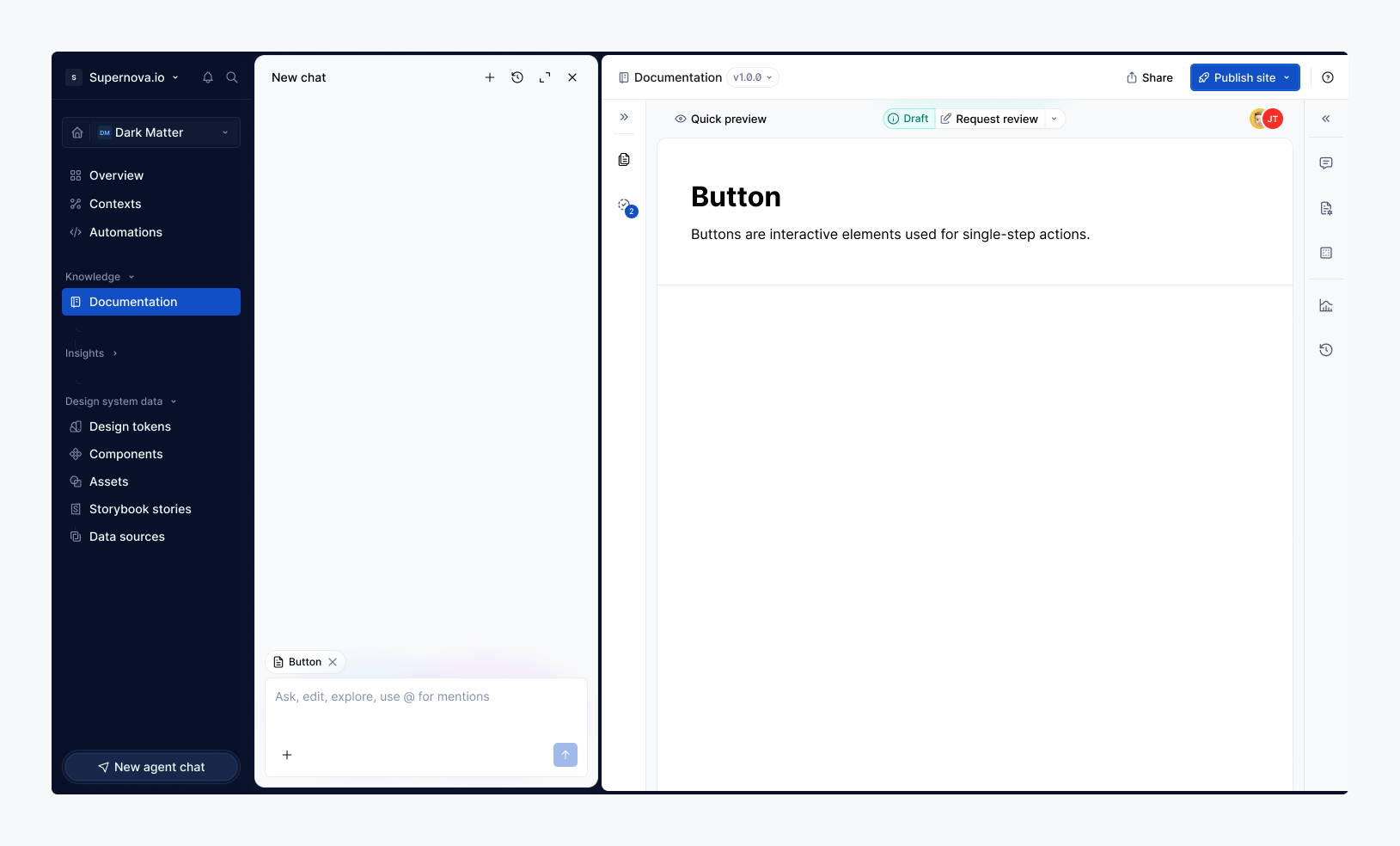
The agent may ask a follow-up question before it acts, for example when a request could apply to more than one item. Reply in the chat and it continues.
Add context to a chat
The agent uses the design system and any page or item you currently have open as context. You can also reference content from other design systems in the same conversation.
- Automatic context — the page or item you have open appears as a chip above the message input. To leave it out, remove the chip before sending. It stays removed while you stay on that page.
- Mentions — type @ or click the mention button to add other pages, tokens, components, or skills to your message.
- Attachments — attach files the agent should read or use, such as screenshots, PDFs, Word, Excel, and PowerPoint files, CSV, Markdown, JSON, and code files. File size limits apply.
Follow what the agent does
While the agent works, the chat shows its progress:
- Planning — the agent is working out how to approach your request.
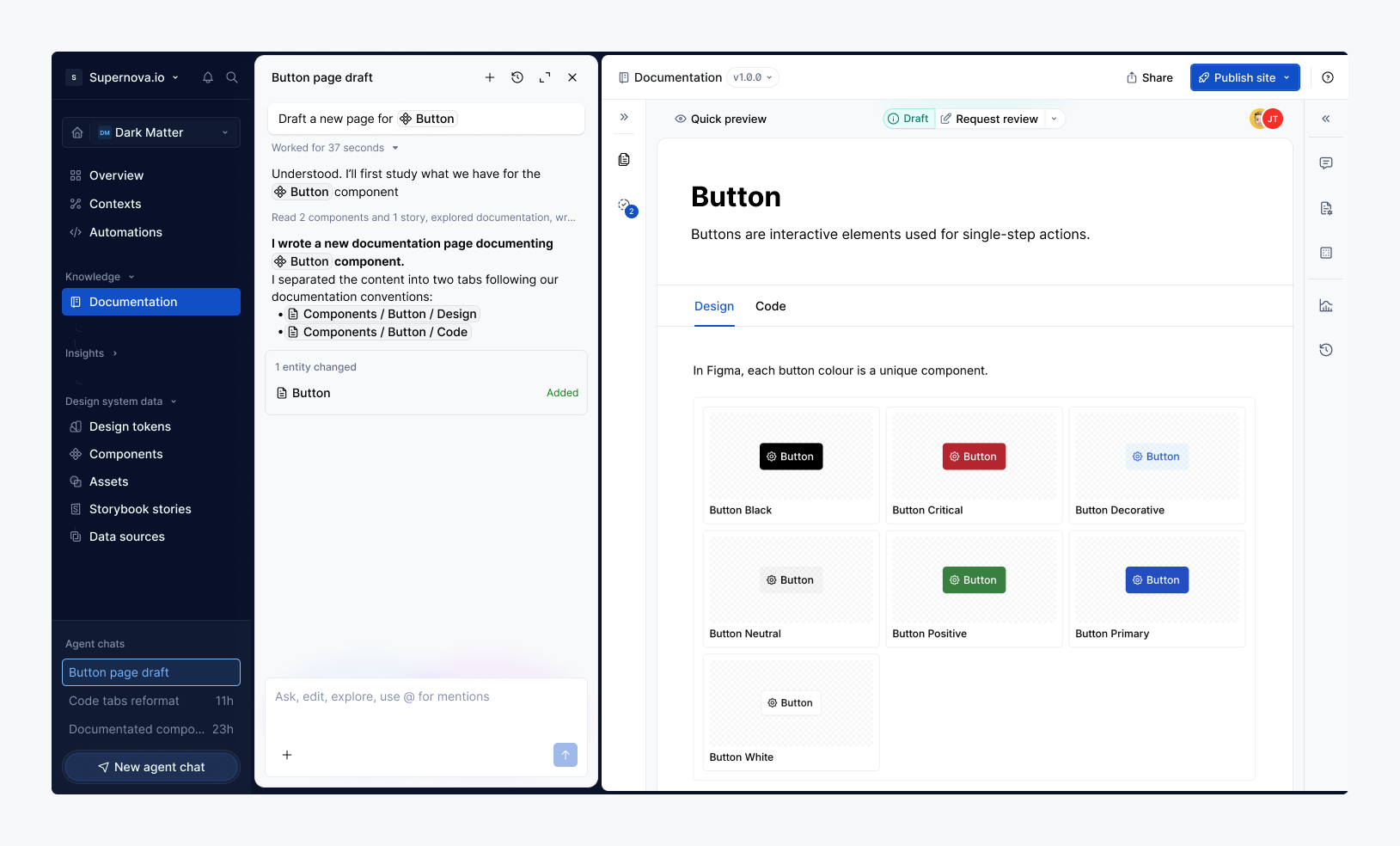
- Working — the agent is carrying out the task. Expand the working panel to see each step and the items it read or changed.
When the agent finishes, its reply summarizes the result. Items it mentions appear as chips. Click a chip to open that item's details without leaving the chat.
When the agent changes something, the reply ends with a list of every item it changed. The changes are already visible in Supernova — you don't need to refresh the page.
Confirm publishing and deletions

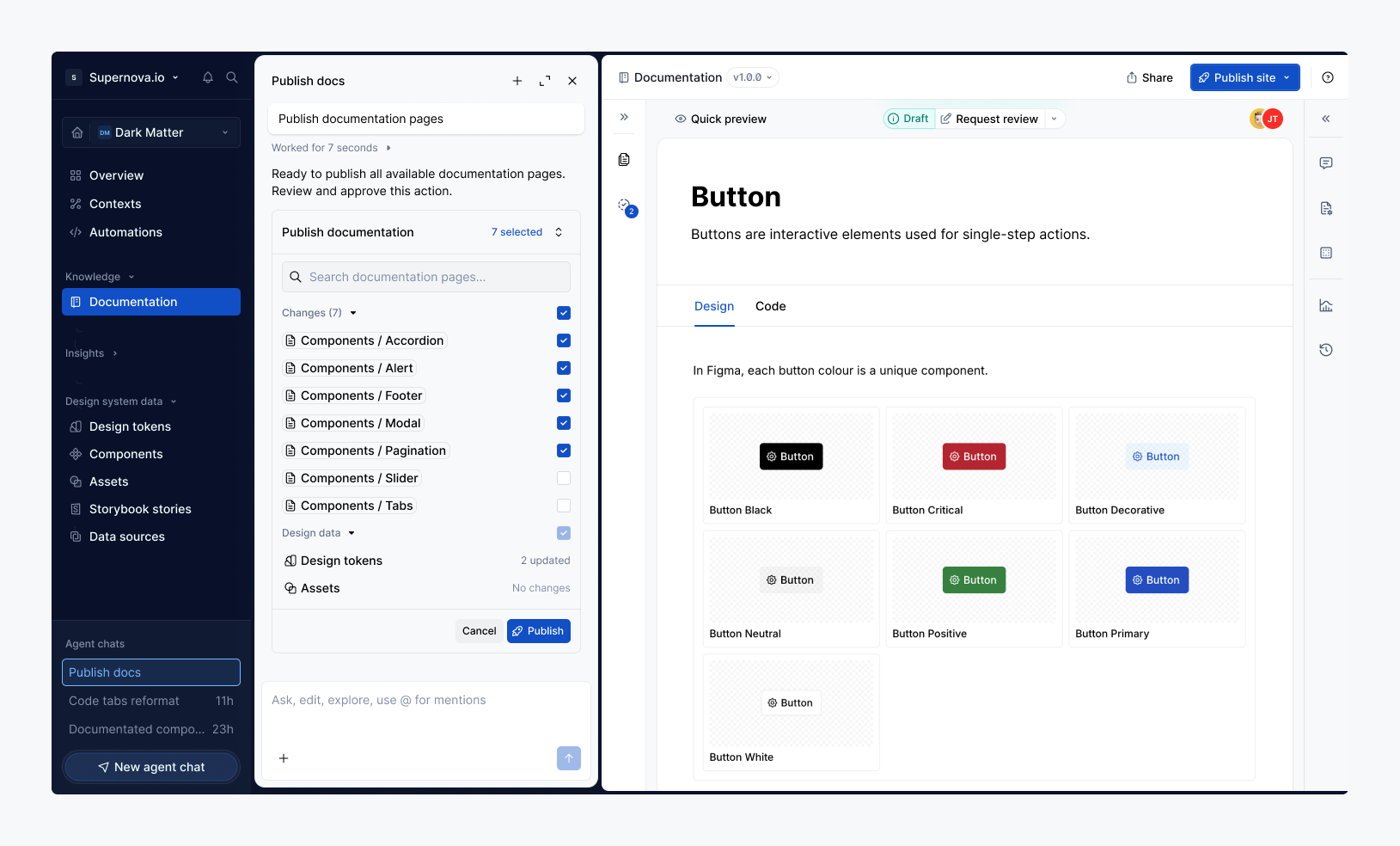
The agent never publishes or deletes on its own. It only proposes these actions when you ask, and always waits for your confirmation in the chat.
Publish documentation
You can ask the agent to publish in two ways:
- "Publish what we worked on" — publishes the pages the agent created or edited in this chat.
- "Publish all documentation" — publishes every page that is ready, following your approval workflow.
To publish:
- Ask the agent to publish.
- Review the list of pages in the publish card.
- Confirm to start publishing.
- When the build finishes, click Open to view the published documentation.
Design data, such as tokens and components shown in blocks, is updated automatically on all published pages.
Delete items
Before deleting pages, tokens, components, or other items, the agent lists everything that will be removed. Nothing is deleted until you confirm.
Undo changes
There's no one-click undo for agent changes. To reverse something, ask the agent in the same chat, for example, "Revert what we just did." The agent makes new edits to put things back, so check the result in Supernova afterwards.
For documentation pages, you can also restore an earlier version from page history. Edits made by the agent are recorded there.
Manage your chats
You can run several chats at the same time and keep working while the agent runs in the background.
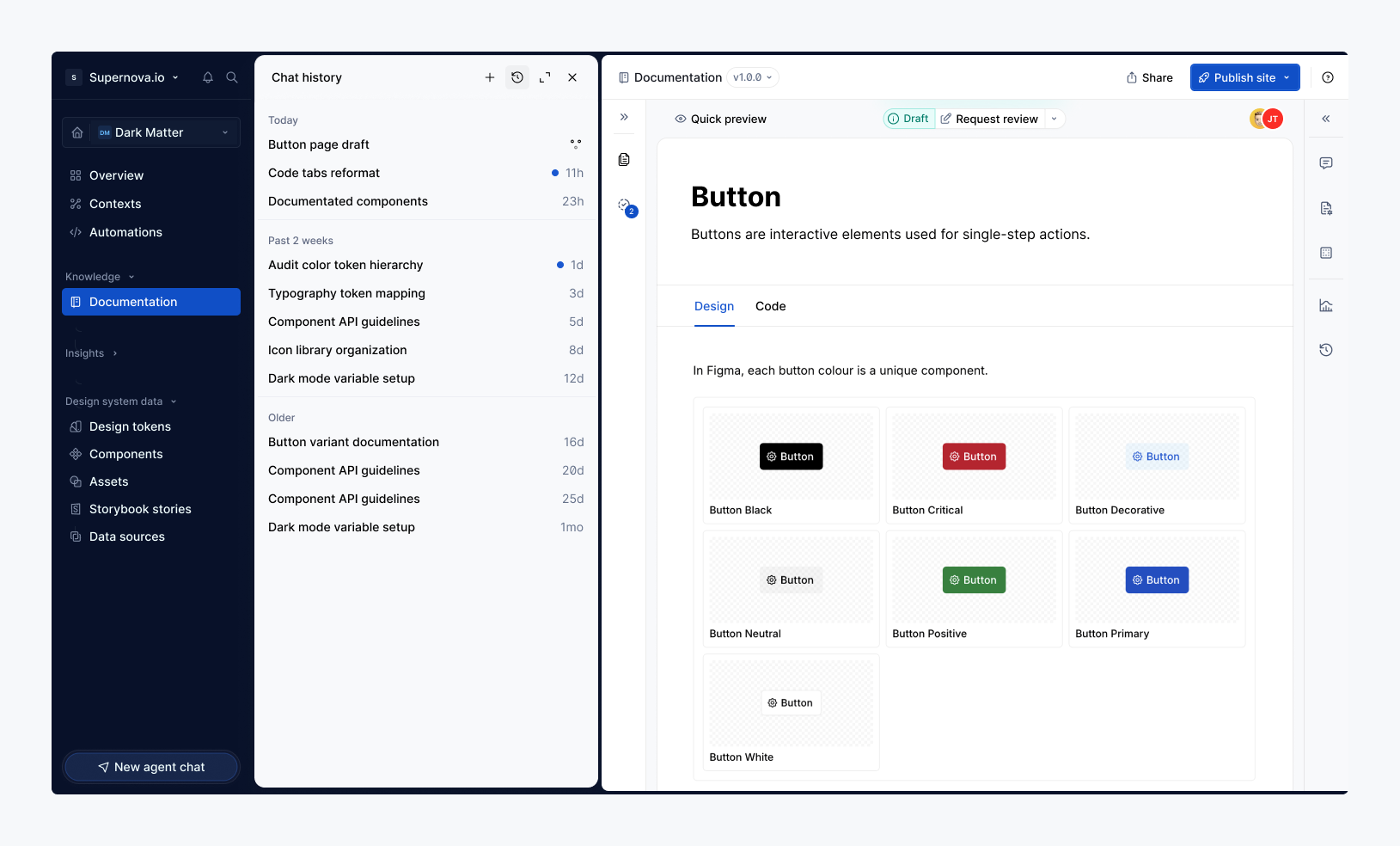
- Recent chats — the side navigation shows your most recent chats.
- Chat history — click View all to see every chat, grouped into Today, Past 2 weeks, and Older.
- Status indicators — chats that are still running or have unread replies are marked in the list.
- Full screen — expand the agent panel for longer tasks. The panel stays open as you navigate between pages.
Tips for better results
- Start where the work is — open the page or item before starting a chat, so it's attached automatically.
- Name things precisely — use @ mentions instead of describing an item.
- List before you change — ask for an audit first ("Which tokens are unused?"), check the list, then ask for the change.
- One task per chat — start a new chat for unrelated work. The agent keeps context within a chat.
What it cannot do
The agent cannot:
- Bypass your role's permissions or your plan's limits
- Create or edit data that comes from outside Supernova, such as Figma components, code components, or Storybook stories
- Connect external services such as Figma or GitHub — connect those in Supernova first
- Run tasks on a schedule
- Share a chat with teammates
Permissions, plans, and credits
- Your permissions — the agent acts as you and sees only what you can see in Supernova. It's available to Contributors, Editors, Admins, and Owners, and can only perform actions allowed by your role.
- Plan limits — your plan's limits apply to the agent too, for example the number of themes or documentation pages.
- Credits — each message to Supernova Agent costs 50 workspace credits. When your workspace runs out of credits, you can't send new requests until credits are available again. You can also purchase additional credits at any time. See Workspace credits.