If you're experiencing issues connecting your Storybook to Supernova, this guide will help you resolve common problems.
Composite Storybook
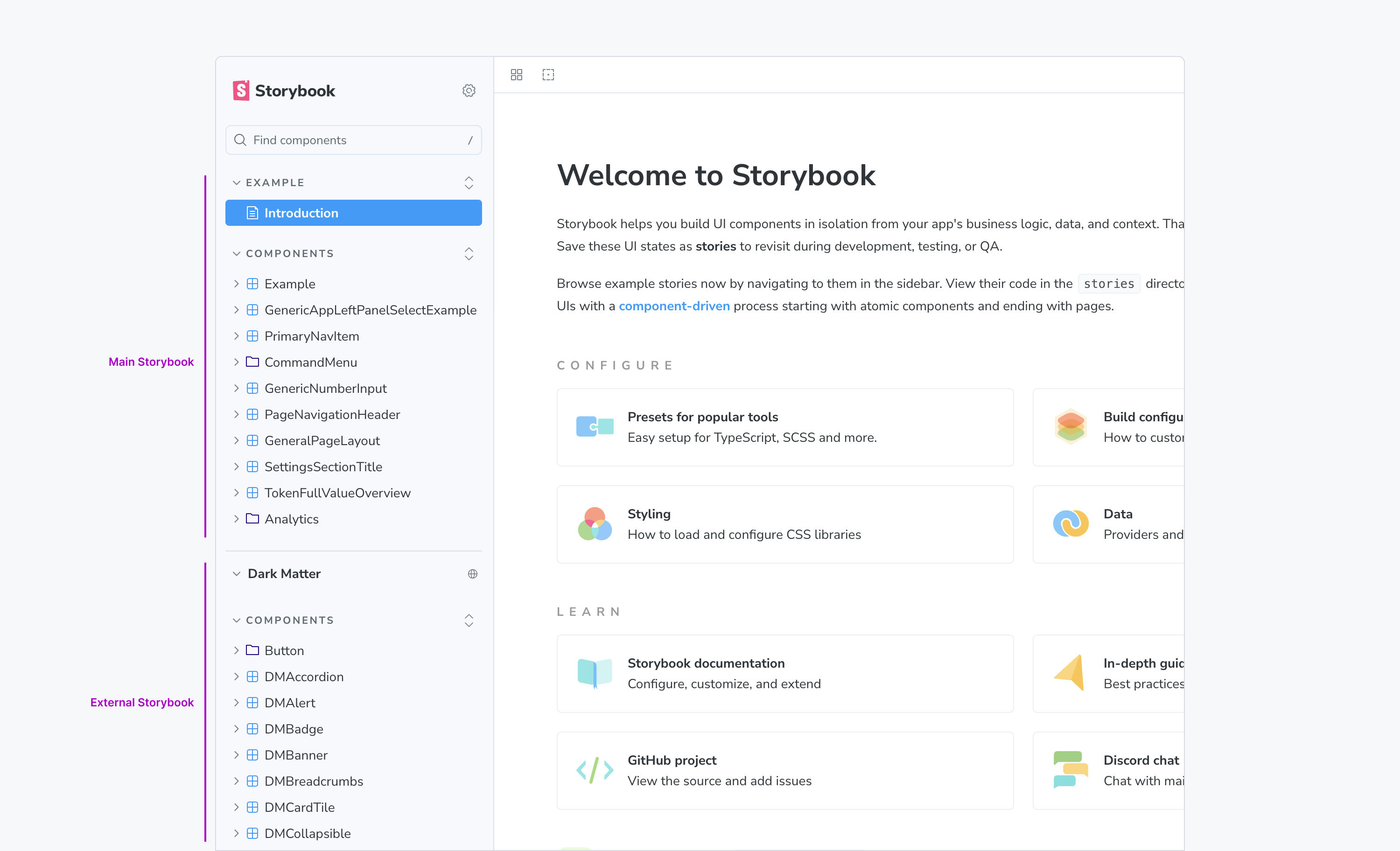
When working with composite Storybooks (multiple Storybooks combined), you’ll need to connect each of them to Supernova individually. This gives you more granular control over what is imported.
- Go to a specific section in your main Storybook sidebar.
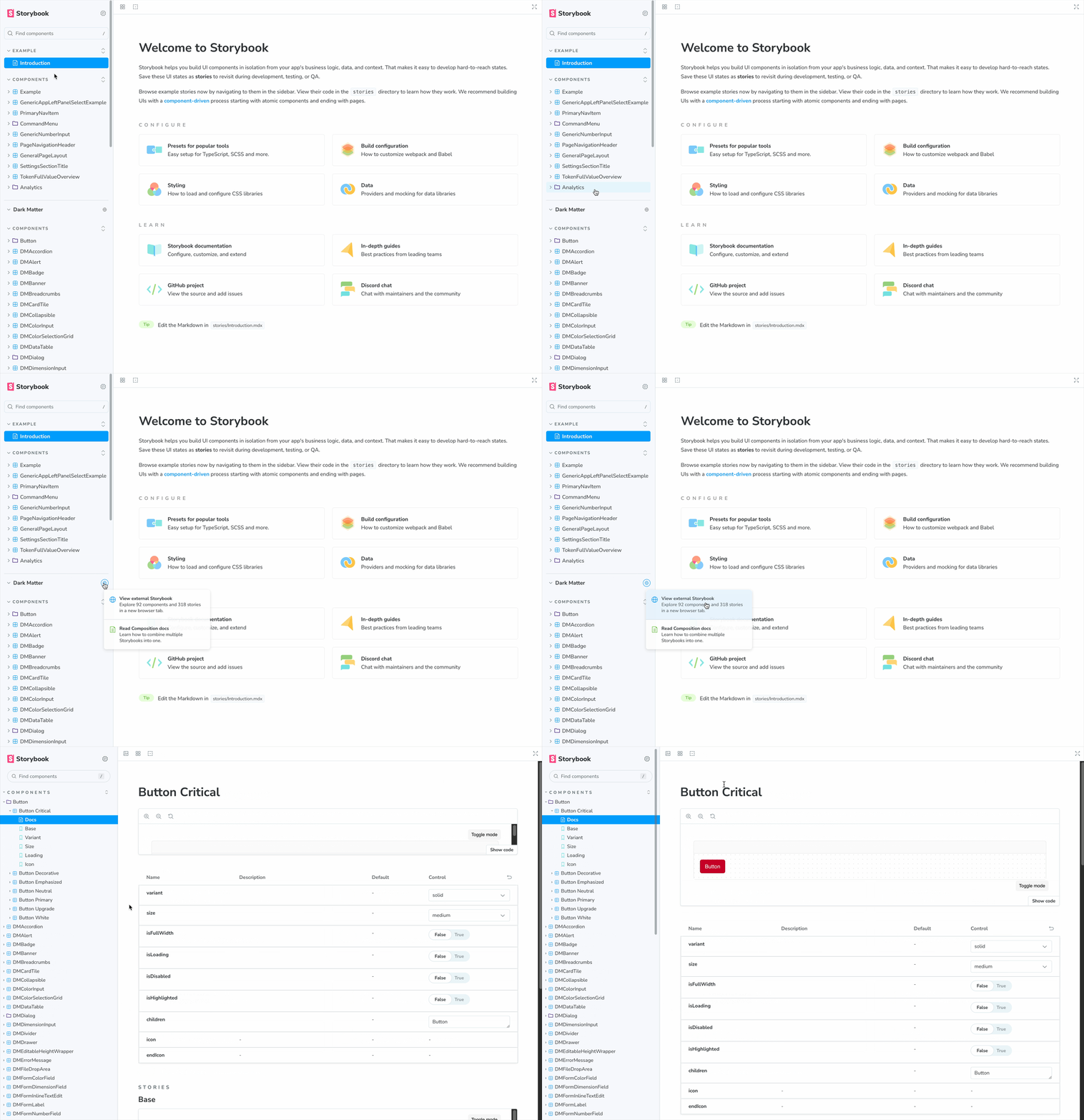
- On the right from the external Storybook name is a globe icon. Click to open the context menu, and press View external Storybook (video below).
- Copy the direct link of the Storybook that you opened and use it to connect Storybook in Supernova.
- If you have more external Storybooks composed, repeat the process to get their direct links.
Connect Storybook that requires VPN
Our recommended solution is importing Storybook using CLI which should resolve any CORS or VPN restrictions.
Alternatively, follow these steps to set up your Storybook:
When connecting your Storybook to Supernova, it may be hosted on a custom domain — such as storybook.yourcompany.com
To make sure everything works smoothly within Supernova, your server needs to allow our app at https://app.supernova.io to access your documentation content. This is done by setting the Access-Control-Allow-Origin header in your server's configuration.
We recommend setting it to one of the following:
- https://app.supernova.io: for secure, production-ready setups
- *: for internal use, testing, or quick setups where strict security isn't a priority
Without this header, some content may not load properly when working inside the Supernova editor.
If you encounter any issues, or your VPN setup has special requirements, please reach out to our support team for help.
My Storybook is behind authentication
If your Storybook requires authentication, the web integration will not work. Import Storybook using the CLI instead. Your Storybook will be accessible only to users signed in with their Supernova accounts.