
Present a branded and trustworthy login experience to your team with custom branding and authentication options for your Supernova workspace. Reduce user confusion around which authentication methods are supported and which login method to use.
Enable custom login page
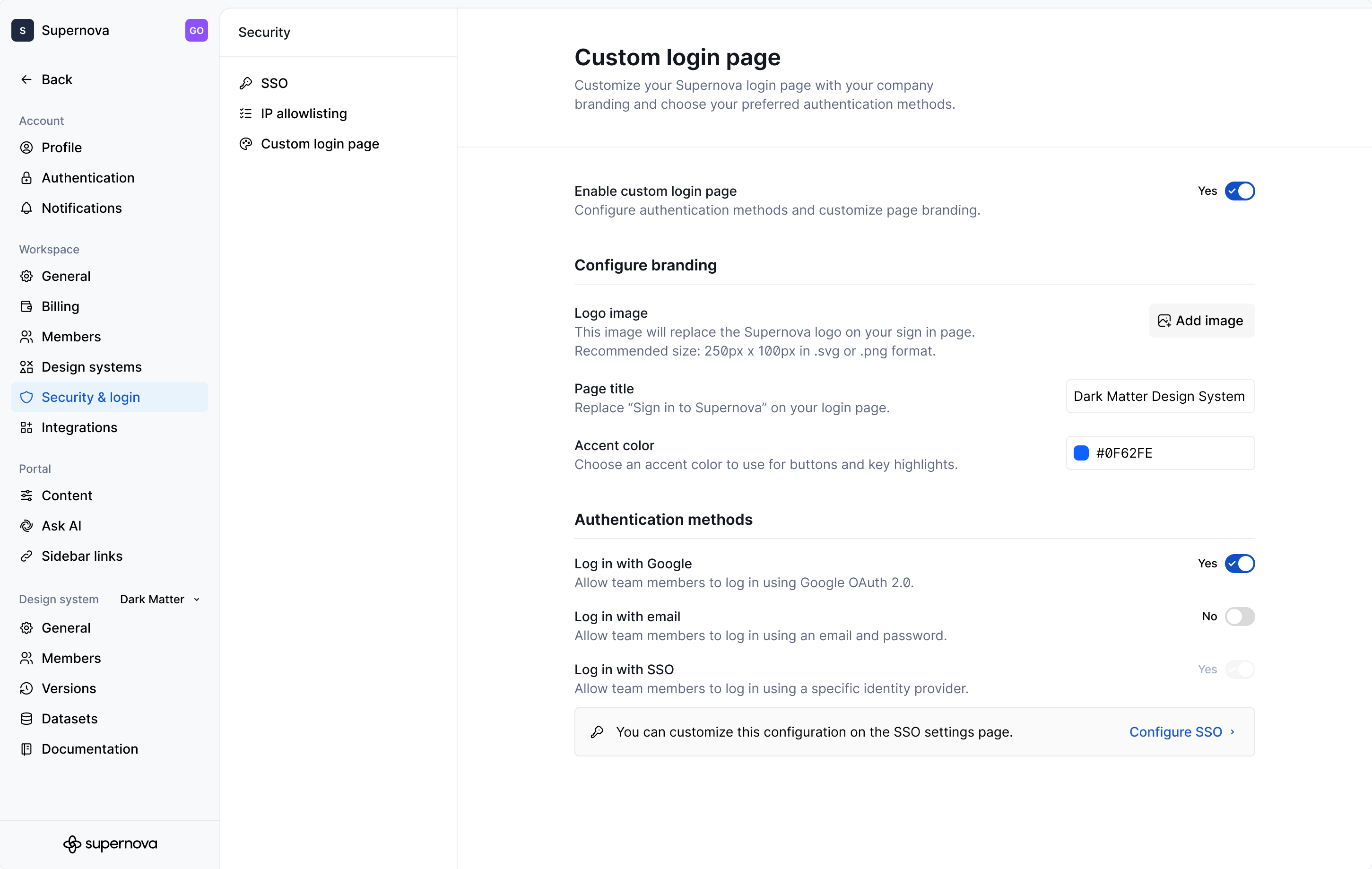
To enable (or disable) the custom login page:
- Navigate to Settings → Security & login → Custom login page.
- Toggle the switch for Enable custom login page.
Configure branding
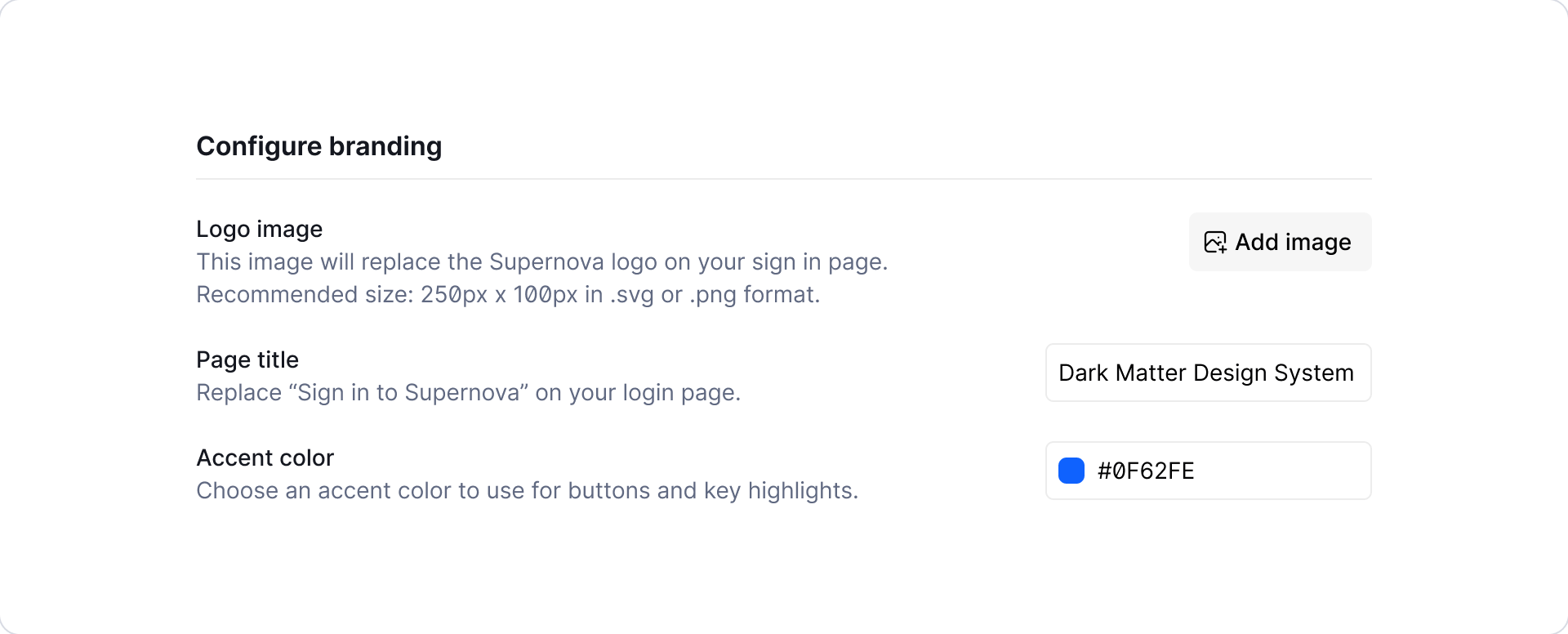
- Navigate to Settings → Security & login → Custom login page.
- Upload a custom logo image. This logo will be used in place of the Supernova logo.
- Enter a custom page title to replace “Log in to Supernova” on the login page.
- Choose an accent color for the page.
- Changes will be saved automatically.
Sign out and go to the login page to view the changes.
Configure authentication methods
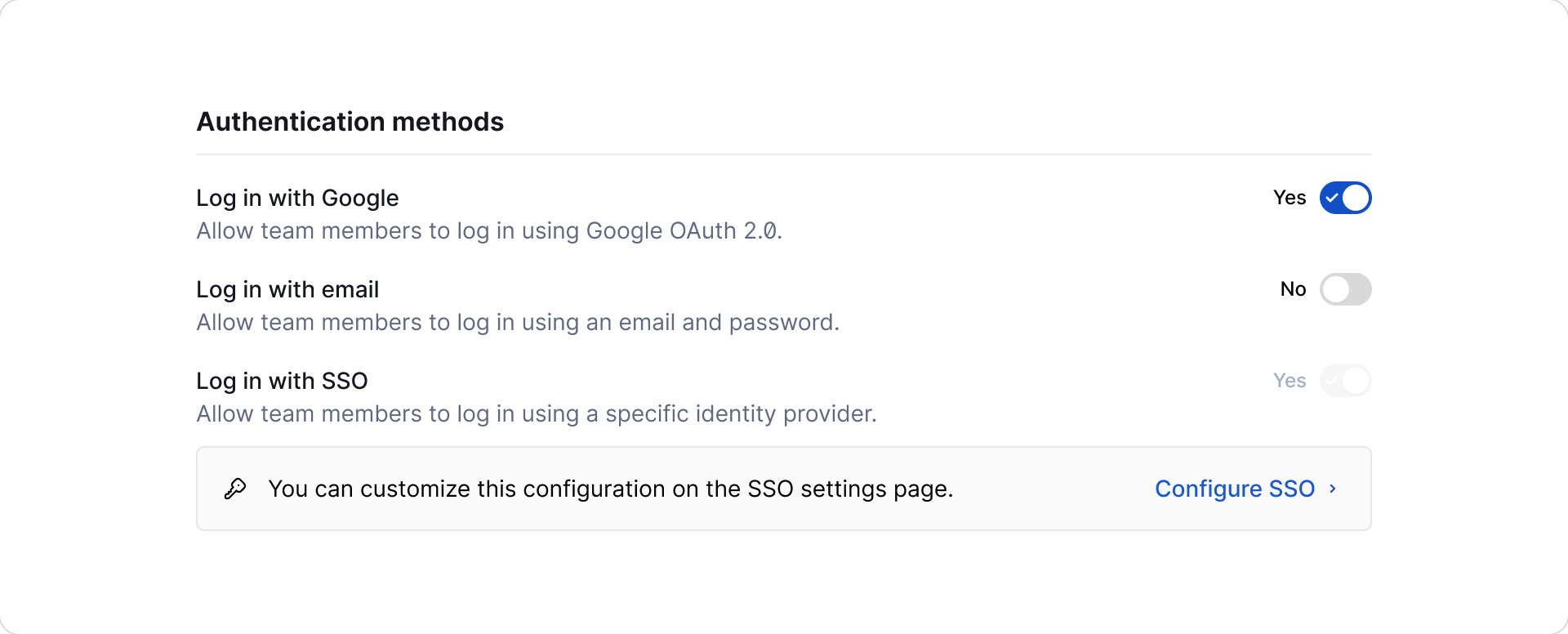
In the list of authentication methods, you can enable or disabled your preferred methods. When a method is disabled, users will not see it as an option when logging in to the workspace.
- Navigate to Settings → Security & login → Custom login page.
- Choose which authentication methods to enable.